Moving Objects
Gizmo Drag (Direct Manipulation)
Click an object to select it. Three colored arrows appear at its center:
- Red arrow (X axis) — drag to move left/right
- Green arrow (Y axis) — drag to move up/down
- Blue arrow (Z axis) — drag to move forward/back
Drag an arrow to move the object along that axis. The movement is constrained to a single axis for precision.
Cancel a Drag
Press Escape while dragging to cancel. The object snaps back to its position before the drag started.
Commit
When you release the mouse button, the translation is committed to the undo history. You can undo it with Ctrl+Z.
Panel Transform
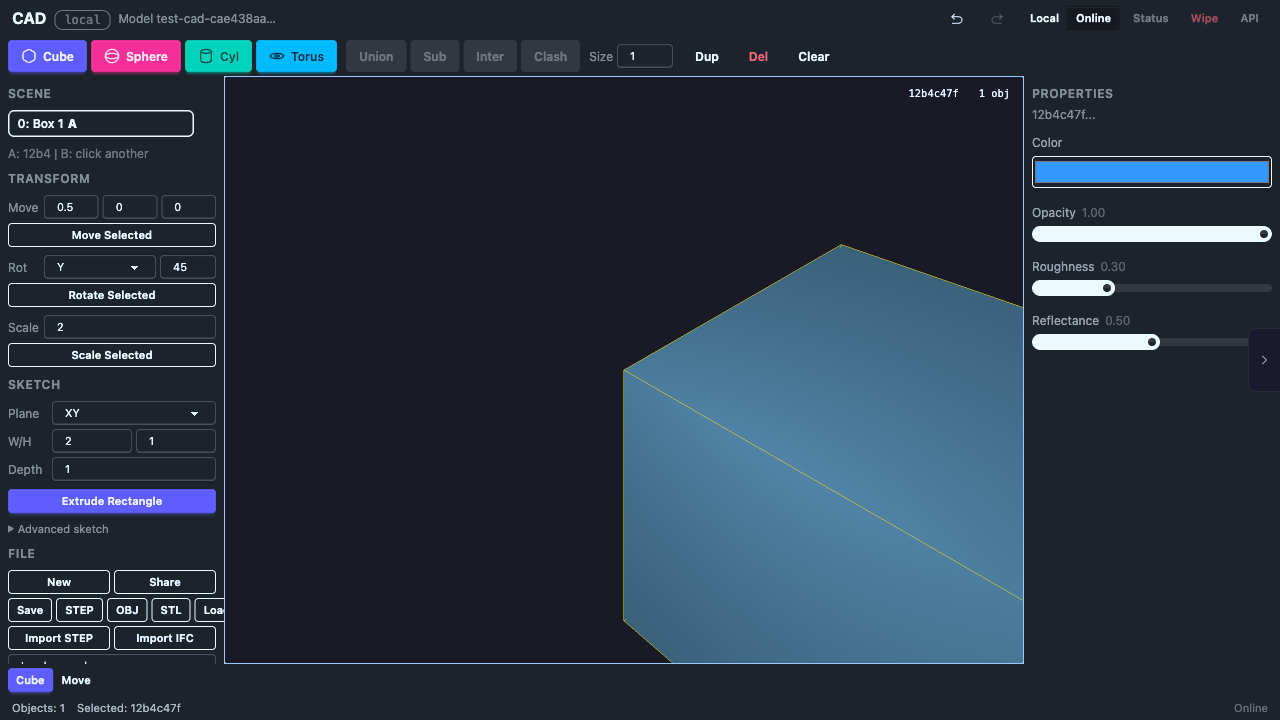
You can also enter exact translation values in the Transform section of the tool panel:
- Enter dx, dy, dz values
- Click Move Selected
The object moves relative to its current position.
Camera During Drag
Camera rotation is automatically disabled while dragging a gizmo arrow, so you can drag precisely without accidentally rotating the view.